Save Time in Excel: Automating Navigation Menus with VBA
Introduction
Excel remains one of the most widely used tools in health economics and outcomes research (HEOR) modeling. As model engines grow in size and complexity, they often span dozens of interlinked worksheets, making clear and consistent navigation essential for both model developers and reviewers.
In practice, however, building and maintaining navigation menus across a multi-sheet workbook is tedious. Creating buttons, copying formats, updating links, and keeping everything aligned can easily consume hours of repetitive work. This is a frustration I’ve shared with many colleagues, and experienced repeatedly myself, especially when models evolve rapidly and navigation needs to be rebuilt again and again.
To address this, I developed a VBA-powered navigation tool that automates the process. Instead of relying on extensive copy-and-paste workflows, analysts can generate clean, consistent navigation menus across individual sheets with just one or two clicks, saving time and reducing manual errors.
In this post, I’ll introduce the core features of this tool, demonstrate how it works using a real-world model engine, and share how I plan to further refine it to better support the everyday needs of HEOR analysts.
Key Capabilities of the Initial Release
While this tool will continue to be developed and maintained iteratively, the first version already delivers a practical and time-saving solution for generating clean, hierarchical navigation menus in Excel model engines. It is designed with HEOR analysts in mind, reflecting the real-world needs and workflows of colleagues on my own team.
Core features in Version 1 include:
- Two-level hierarchical navigation menus for clear structure across complex workbooks
- Fully customizable menu headers for both navigation levels
- Selective inclusion of worksheets, allowing analysts to control which sheets appear in the menu
- Adjustable alignment and positioning to fit different workbook layouts
- Customizable color palettes to support branding or internal style guides
- Ability to run VBA externally, without embedding code directly into the model workbook
- User-friendly parameter controls, enabling customization without requiring VBA knowledge
Together, these features aim to reduce repetitive setup work, improve consistency across sheets, and make large Excel-based model engines easier to navigate, for both model developers and reviewers.
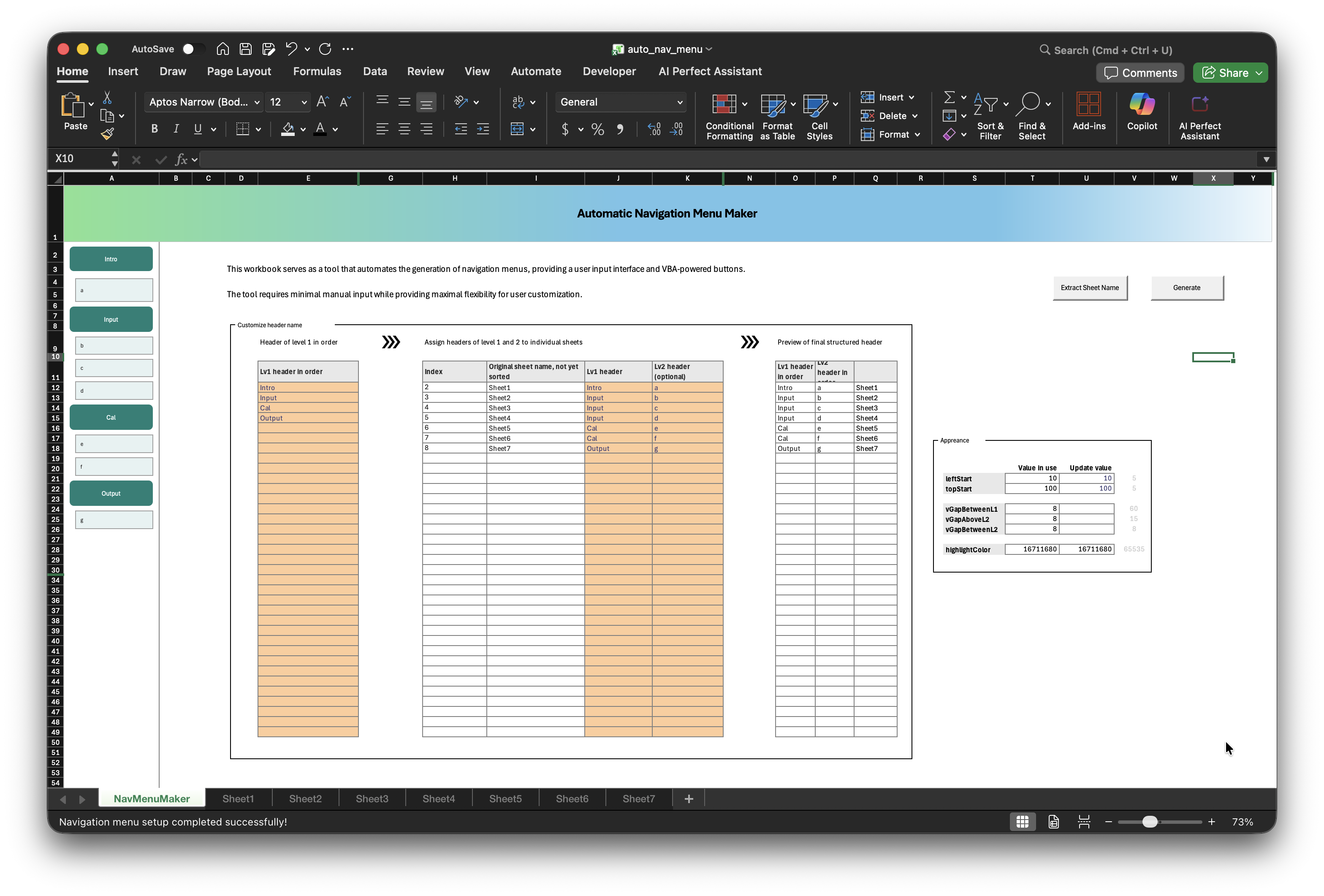
How to Use the Tool
The navigation tool is designed to work seamlessly with almost any Excel workbook, and is particularly well suited for epidemiology and HEOR model engines. Because the VBA runs externally, you don’t need to copy or embed any code into your project workbook, keeping models clean and review-friendly.
Getting started takes just three simple steps.
Step 1: Copy the interface sheet into your target workbook
From the template workbook, locate the NavMenuMaker sheet.
Use Excel’s Move or Copy… option to copy this single sheet into your project workbook.
That’s the only sheet you need.
Step 2: Define menu headers and layout
In the NavMenuMaker sheet, enter your preferred navigation headers in the designated fields. You can choose between:
- A single-level menu, or
- A two-level hierarchical menu, depending on your model structure
From the same interface, you may also adjust:
- Menu alignment and position
- Color palette for branding or visual clarity
Once the structure is defined, click Confirm and let the VBA handle the rest.
(Please keep the template workbook open while the tool is running.)
A live preview of the navigation menu appears almost instantly. You can revise headers or layout and rerun the tool as needed.
Step 3: Review navigation across selected sheets
Finally, verify that the navigation menu is correctly placed across all selected sheets. If adjustments are needed, simply return to NavMenuMaker, update the parameters, and rerun the tool.
The result is a fully linked navigation menu on each sheet, with clear visual highlighting of the active sheet, making large model engines easier to explore and review.
That’s it. With just a few clicks, you can eliminate repetitive setup work and focus your time where it matters most: analysis and decision-making.
I hope this tool saves you a meaningful amount of time, enjoy trying it out.
Download the Free Tool
You’re welcome to download the first version of the tool for free from the GitHub repository if the introduction has sparked your interest.
I plan to continue updating and refining the tool to make it even more useful for real-world modeling workflows.